Text to Columns in Excel

To separate the contents of one Excel cell into separate columns you can use the 'Convert Text to Columns Wizard'. For example when you want to separate a list of full names into last and first names.
1. Select the range with full names.
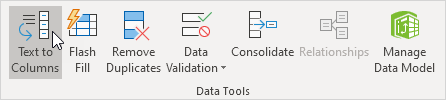
2. On the Data tab in the Data Tools group click Text to Columns.
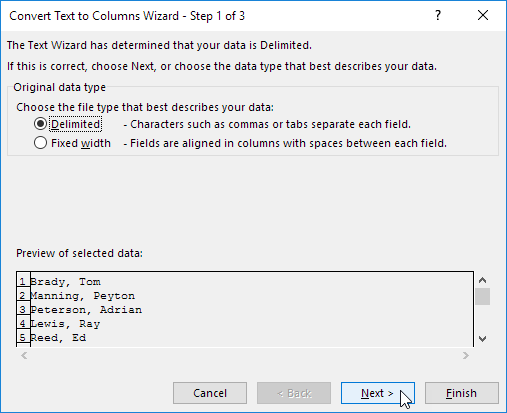
The following dialog box appears.
3. Choose Delimited and click Next.
4. Clear all the check boxes under Delimiters except for the Comma and Space check box.
5. Click Finish.
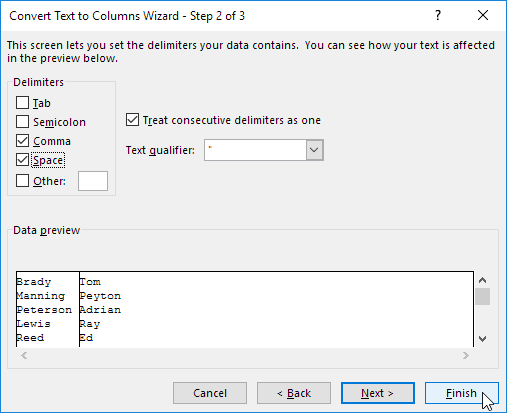
Note: This example has commas and spaces as delimiters. You may have other delimiters in your data. Experiment by checking and unchecking the different check boxes. You get a live preview of how your data will be separated.
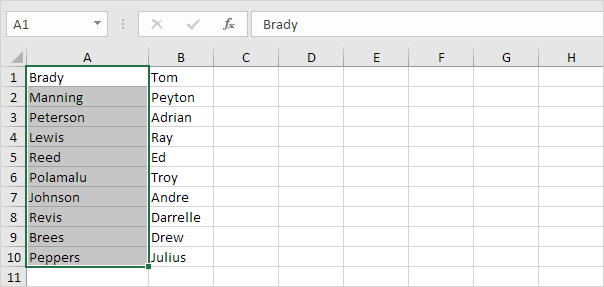
Result:
Written by
Jason Howie
Founder, FormulasHQ
A formula nerd with a passion for numbers and equations. Writes about Excel, Google Sheets, VBA, regex, and Salesforce formulas — for people who spend their day in spreadsheets.