Protect a Workbook in Excel
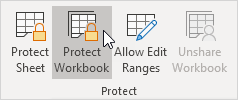
This example teaches you how to protect the workbook structure in Excel.
If you protect the workbook structure users cannot insert delete rename move copy hide or unhide worksheets anymore.
1. Open a workbook.
2. On the Review tab in the Protect group click Protect Workbook.
3. Check Structure enter a password and click OK.
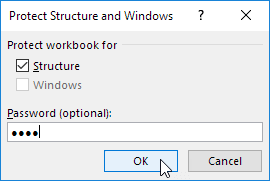
Note: The Windows option is not available in Excel 2013 and later versions.
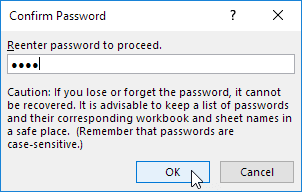
4. Re-enter the password and click OK.
Users cannot insert delete rename move copy hide or unhide worksheets anymore.
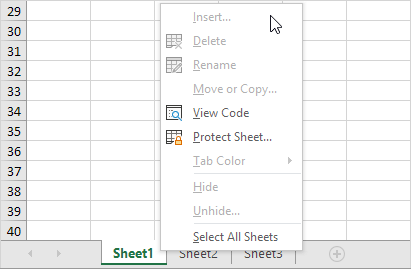
Note: to unprotect the workbook click Protect Workbook and enter the password. The password for the downloadable Excel file is "easy".
Written by
Jason Howie
Founder, FormulasHQ
A formula nerd with a passion for numbers and equations. Writes about Excel, Google Sheets, VBA, regex, and Salesforce formulas — for people who spend their day in spreadsheets.