View Multiple Worksheets in Excel
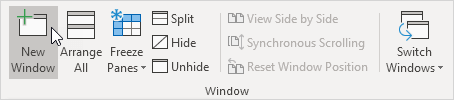
If you want to view multiple Excel worksheets at the same time execute the following steps.
1. Open a workbook.
2. On the View tab in the Window group click New Window.
Excel opens a new window containing another view of the document.
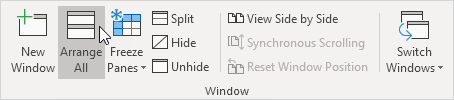
3. On the View tab in the Window group click Arrange All.
4. Select the desired arrange setting. For example click Horizontal.
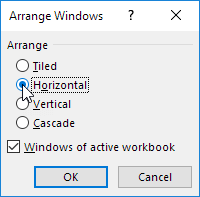
5. Click OK.
The titles (view-multiple-worksheets:1 and view-multiple-worksheets:2) indicate that two windows of the same file are open.
6. In the lower window select the sheet tab of Wk2. You can now view the sales in week 1 and week 2 at the same time.
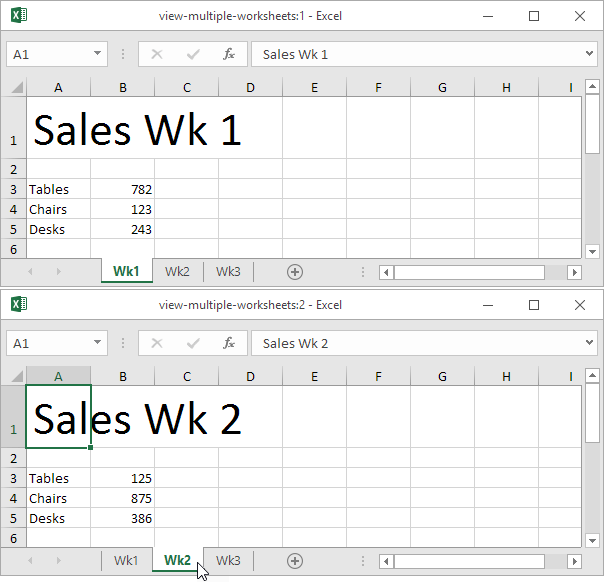
Note: any changes you make to one window are immediately reflected in the other window.
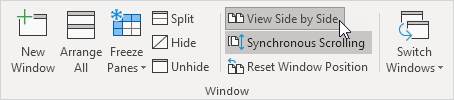
7. On the View tab in the Window group click View Side by Side (by default Synchronous Scrolling is activated) to scroll both worksheets at the same time.
Finally to quickly switch between sheets in Excel use the following handy keyboard shortcuts.
8. To quickly move to the next worksheet press CTRL + Page Down.
9. To quickly move to the previous worksheet press CTRL + Page Up.
Written by
Jason Howie
Founder, FormulasHQ
A formula nerd with a passion for numbers and equations. Writes about Excel, Google Sheets, VBA, regex, and Salesforce formulas — for people who spend their day in spreadsheets.