From Active Cell to Last Entry in Excel VBA
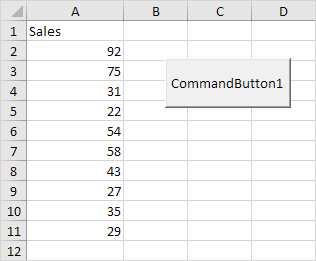
This example illustrates the End property of the Range object in Excel VBA. We will use this property to select the range from the Active Cell to the last entry in a column.
Situation:
Some sales figures in column A. Assume that you will be adding more sales figures over time.
Place a command button on your worksheet and add the following code lines:
1. To select the last entry in a column simply add the following code line:
Range("A5").End(xlDown).SelectNote: instead of Range("A5") you can also use Range("A1") Range("A2") etc. This code line is equivalent to pressing the END+DOWN ARROW.
Result when you click the command button on the sheet:
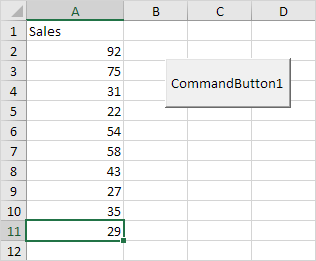
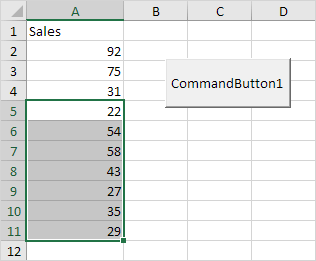
2. To select the range from cell A5 to the last entry in the column add the following code line:
Range(Range("A5") Range("A5").End(xlDown)).SelectResult when you click the command button on the sheet:
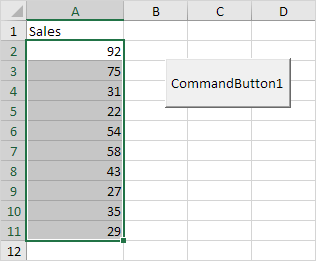
3. To select the range from the Active Cell to the last entry in the column simply replace Range("A5") with ActiveCell.
Range(ActiveCell ActiveCell.End(xlDown)).SelectResult when you select cell A2 and click the command button on the sheet:
Note: you can use the constants xlUp xlToRight and xlToLeft to move in the other directions. This way you can select a range from the Active Cell to the last entry in a row.
Written by
Jason Howie
Founder, FormulasHQ
A formula nerd with a passion for numbers and equations. Writes about Excel, Google Sheets, VBA, regex, and Salesforce formulas — for people who spend their day in spreadsheets.