Convert Numbers to Text in Excel
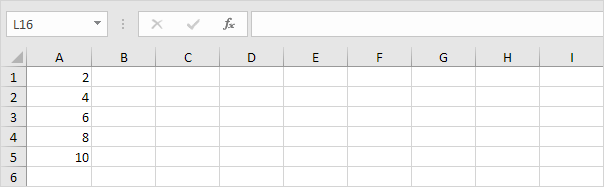
In Excel numbers are right-aligned and text is left-aligned. This example teaches you how to convert numbers to 'text strings that represent numbers'.
1. Select the range A1:A4 and change the number format to Text.
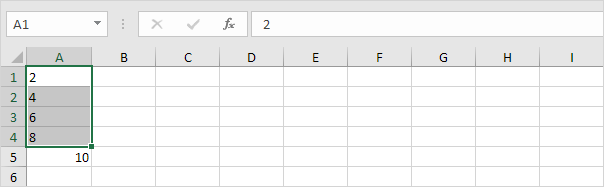
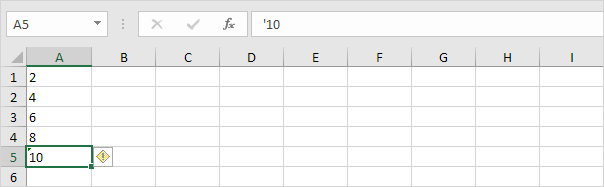
2. Precede a number by an apostrophe and it will also be treated as text.
3a. If you add text to a number and still want to format this number use the TEXT function. Without using the TEXT function this would be the result.

3b. With the TEXT function.

Note: ### is used to add commas to large numbers.
3c. Here's another example. Apply a percentage format.

Note: use 0 to display the nearest integer value. Use 0.0 for one decimal place. Use 0.00 for two decimal places etc.
3d. And another example. Format a date.

Note: use less/more m's d's and y's to change the appearance of the date. Visit our page about the TEXT function for many more examples.
Written by
Jason Howie
Founder, FormulasHQ
A formula nerd with a passion for numbers and equations. Writes about Excel, Google Sheets, VBA, regex, and Salesforce formulas — for people who spend their day in spreadsheets.