Paste Special Shortcuts in Excel
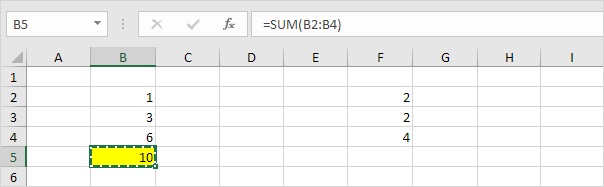
Use the shortcut Ctrl + Alt + V to display the Paste Special dialog box in Excel. Next press an underlined letter to paste formulas values formatting etc.
Paste Formulas
To paste formulas only execute the following steps.
1. Select cell B5 below and press Ctrl + C (copy shortcut).
2. To select cell F5 press → four times and press Ctrl + Alt + V (paste special shortcut).
The Paste Special dialog box appears.
3. Press F (Formulas).
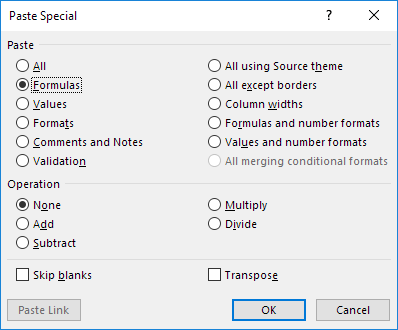
4. Press Enter.
Result - all without using the mouse!
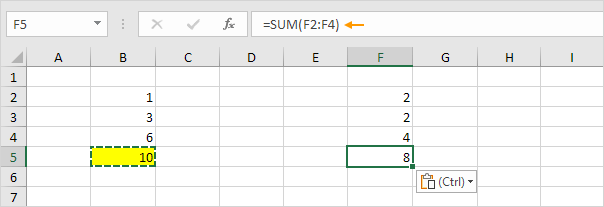
Conclusion: use the shortcut Ctrl + Alt + V + F to paste formulas only. Visit our page about copying formulas for more tips and tricks.
Paste ValuesTo paste values only execute the following steps.
1. Select cell B5 below and press Ctrl + C (copy shortcut).
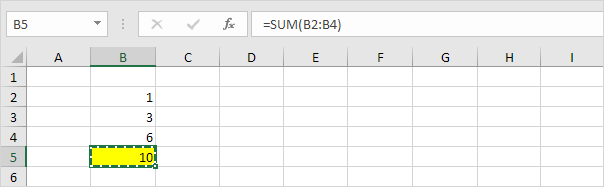
2. To select cell D5 press → two times and press Ctrl + Alt + V (paste special shortcut).
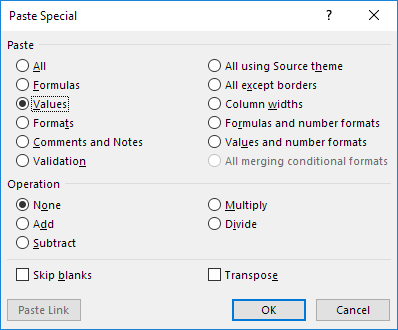
The Paste Special dialog box appears.
3. Press V (Values).
4. Press Enter.
Result - all without using the mouse!

Conclusion: use the shortcut Ctrl + Alt + V + V to paste values only. Use F2 and F9 to quickly replace a formula with its result.
Paste FormattingTo paste formatting only execute the following steps.
1. Select cell B5 below and press Ctrl + C (copy shortcut).
2. To select cell D5 press → two times and press Ctrl + Alt + V (paste special shortcut).
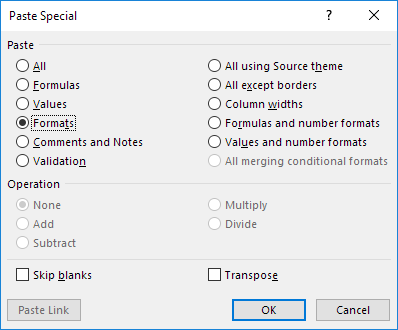
The Paste Special dialog box appears.
3. Press T (Formats).
4. Press Enter.
Result - all without using the mouse!
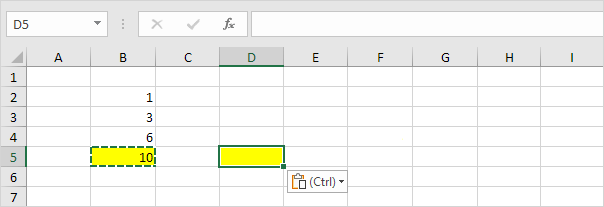
Conclusion: use the shortcut Ctrl + Alt + V + T to paste formatting only. You can also use the format painter to quickly copy and paste formatting.
TransposeTo convert a horizontal range to a vertical range or vice versa execute the following steps.
1. Select the range A1:C1 below and press Ctrl + C (copy shortcut).

Tip: to select this range without using the mouse select cell A1 hold down Shift and press → two times.
2. Select cell E2 (using your arrow keys) and press Ctrl + Alt + V (paste special shortcut).
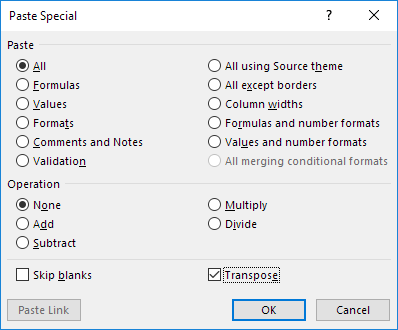
The Paste Special dialog box appears.
3. Press E (Transpose).
4. Press Enter.
Result - all without using the mouse!

Conclusion: use the shortcut Ctrl + Alt + V + E to transpose data. Follow the link to learn more about this topic!
Written by
Jason Howie
Founder, FormulasHQ
A formula nerd with a passion for numbers and equations. Writes about Excel, Google Sheets, VBA, regex, and Salesforce formulas — for people who spend their day in spreadsheets.