Save As Shortcut in Excel
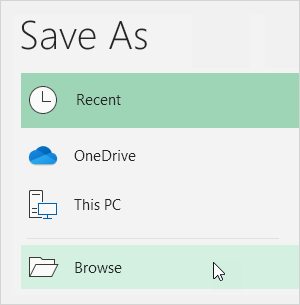
Use the shortcut F12 to display the Save As dialog box in Excel. Press CTRL + s to save an existing workbook. It's good practice to periodically save while you are working on your Excel file.
Save As
To display the Save As dialog box execute the following steps.
1. On the File tab click Save As.
2. Click Browse.
Result:

Note: instead of executing step 1 and step 2 simply use the shortcut F12.
3. Choose a file location.
4. Enter a file name.
5. Click Save.
SaveAgain it's good practice to periodically save while you are working on your Excel file. Saving often can prevent your work from being lost.
1. Edit an existing workbook.
2. Simply press CTRL + s to save the changes.
3. Press F12 (Excel opens the Save As dialog box again) to create a copy of this workbook while keeping the original.
Written by
Jason Howie
Founder, FormulasHQ
A formula nerd with a passion for numbers and equations. Writes about Excel, Google Sheets, VBA, regex, and Salesforce formulas — for people who spend their day in spreadsheets.