MsgBox Function in Excel VBA (Easy Yes/No Message Box)
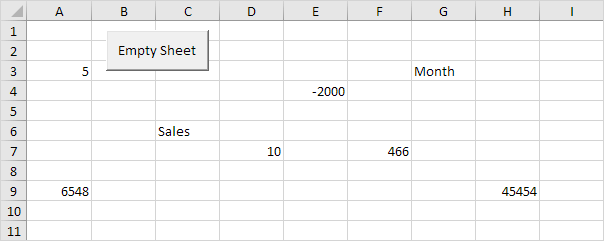
The MsgBox function in Excel VBA can return a result while a simple MsgBox cannot.
Situation:
Place a command button on your worksheet and add the following code lines:
1. First we declare a variable called answer of type Integer.
Dim answer As Integer2. We use the MsgBox function to initialize the variable answer with the input from the user.
The MsgBox function when using parentheses has three arguments. The first part is used for the message in the message box. Use the second part to specify which buttons and icons you want to appear in the message box. The third part is displayed in the title bar of the message box.
answer = MsgBox("Are you sure you want to empty the sheet?" vbYesNo + vbQuestion "Empty Sheet")Note: Place your cursor on vbYesNo in the Visual Basic Editor and click F1 to see which other buttons and icons you can use. Instead of the constants vbYesNo and vbQuestion you can also use the corresponding values 4 and 32.
3. If the user clicks the Yes button Excel VBA empties the sheet. If the user clicks the No button nothing happens. Add the following code lines to achieve this.
If answer = vbYes ThenCells.ClearContents
Else
'do nothing
End If
4. Click the command button on the sheet.
5. Click Yes.
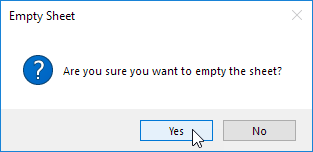
Result:

Written by
Jason Howie
Founder, FormulasHQ
A formula nerd with a passion for numbers and equations. Writes about Excel, Google Sheets, VBA, regex, and Salesforce formulas — for people who spend their day in spreadsheets.