Insert Hyperlinks in Excel
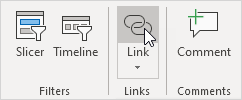
Use the 'Insert Hyperlink' dialog box in Excel to create a hyperlink to an existing file a web page or a place in this document. You can also use the HYPERLINK function.
Existing File or Web Page
To create a hyperlink to an existing file or web page execute the following steps.
1. Select cell A1.
2. On the Insert tab in the Links group click Link.
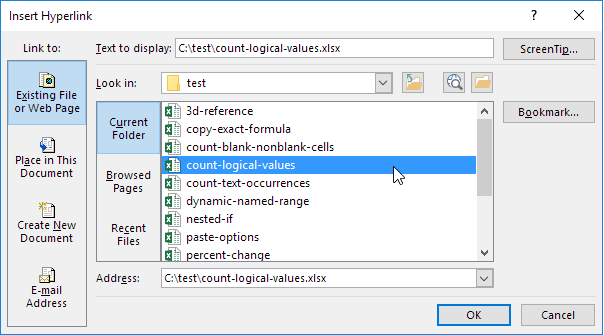
The 'Insert Hyperlink' dialog box appears.
3a. To create a hyperlink to an existing file select a file (use the Look in drop-down list if necessary).
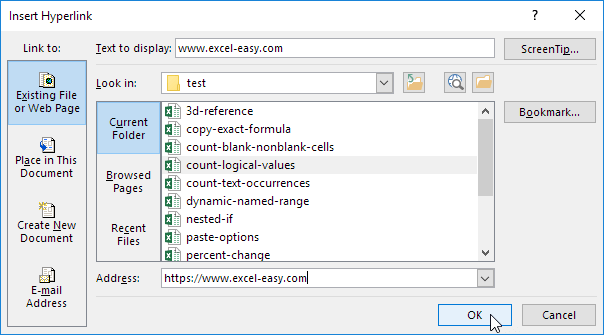
3b. To create a hyperlink to a web page type the Text to display the Address and click OK.
Result:
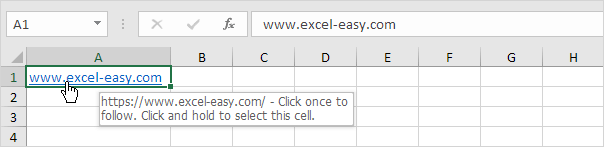
Note: if you want to change the text that appears when you hover over the link click ScreenTip.
Place in This DocumentTo create a hyperlink to a place in this document execute the following steps.
1. Select cell A2.
2. On the Insert tab in the Links group click Link.
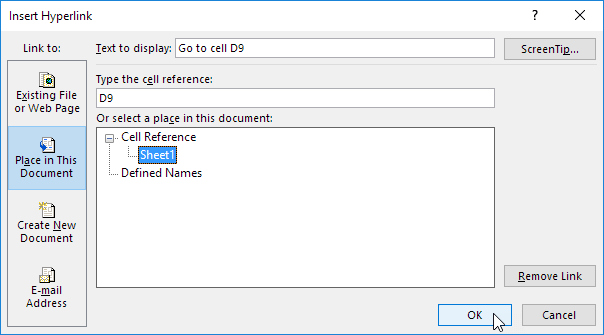
The 'Insert Hyperlink' dialog box appears.
3. Click 'Place in This Document' under Link to.
4. Type the Text to display the cell reference and click OK.
Result:
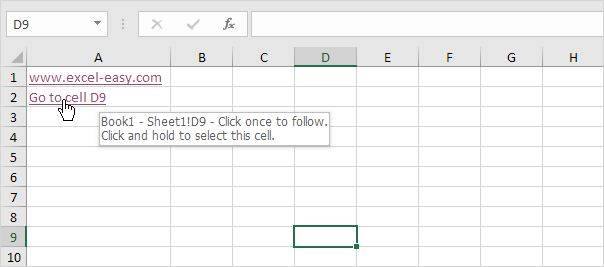
Note: if you want to change the text that appears when you hover over the hyperlink click ScreenTip.
Edit Hyperlink StyleYou can quickly change the style of all hyperlinks in a workbook.
1. First create at least one hyperlink (and click on it).
2. After completing step 1 you'll find two new styles on the Home tab in the Styles group: Hyperlink and Followed Hyperlink (the style of a clicked link).

For example to prevent hyperlinks from changing color in Excel execute the following steps.
3. Right click on Followed Hyperlink and click Modify.
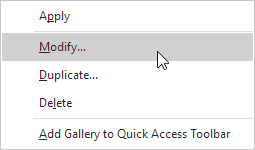
4. Click Format.

5. On the Font tab change the color to #0563C1 (same as Hyperlink).

6. Click OK twice.
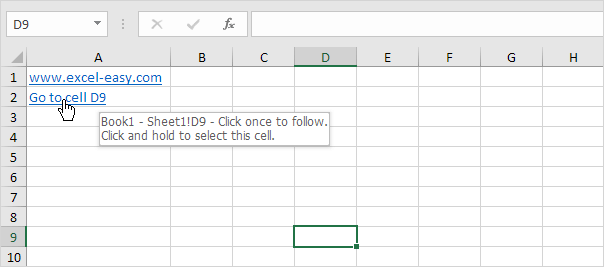
7. Click a hyperlink (the color won't change).
 HYPERLINK function
You can also use the HYPERLINK function in Excel to create hyperlinks. The HYPERLINK function has two arguments.
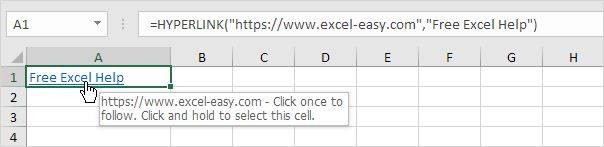
Note: instead of creating a hyperlink to a web page create a hyperlink to an existing file. For example replace the first argument with "C:Reportssales2020.docx" and the second argument with "Open Report".
Written by
Jason Howie
Founder, FormulasHQ
A formula nerd with a passion for numbers and equations. Writes about Excel, Google Sheets, VBA, regex, and Salesforce formulas — for people who spend their day in spreadsheets.