Import/Export Text Files - Excel Tutorial
This article describes how to import or export text files. Text files can be comma separated (.csv) or tab separated (.txt)
Import
To import text files execute the following steps.
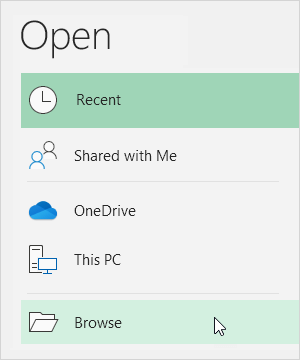
1. On the File tab click Open.
2. Click Browse.
3. Select Text Files from the drop-down list.
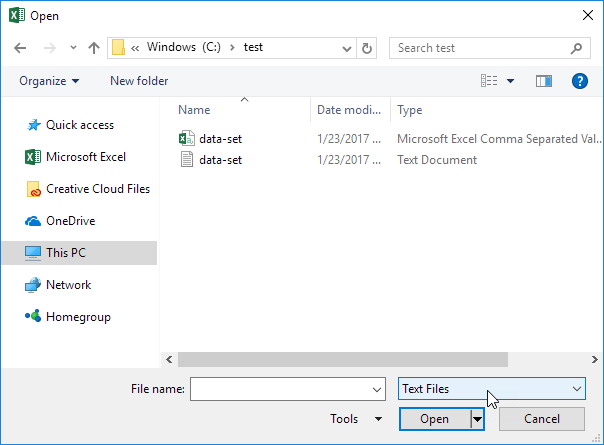
4a. To import a .csv file select the Microsoft Excel Comma Separated Values File and click Open. That's all.
4b. To import a .txt file select the Text Document and click Open. Excel launches the Text Import Wizard.
5. Choose Delimited and click Next.

6. Clear all the check boxes under Delimiters except for the Tab check box and click Next.
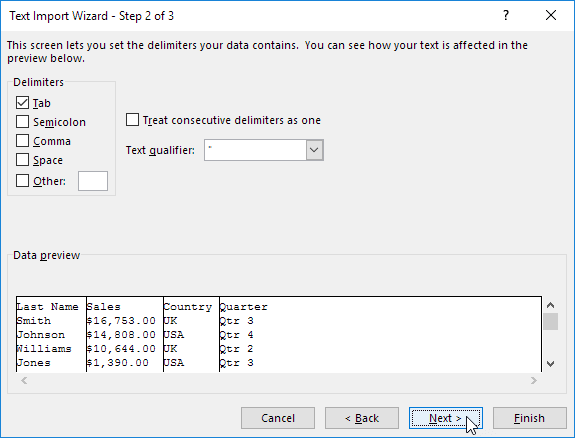
7. Click Finish.

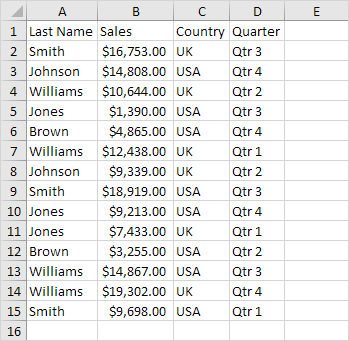
Result:
 Export
To export text files execute the following steps.
1. Open an Excel file.
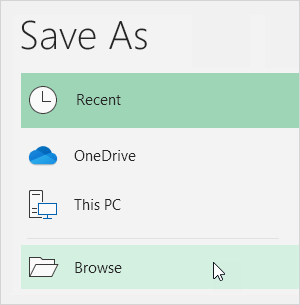
2. On the File tab click Save As.
3. Click Browse.
4. Select Text (Tab delimited) or CSV (Comma delimited) from the drop-down list.
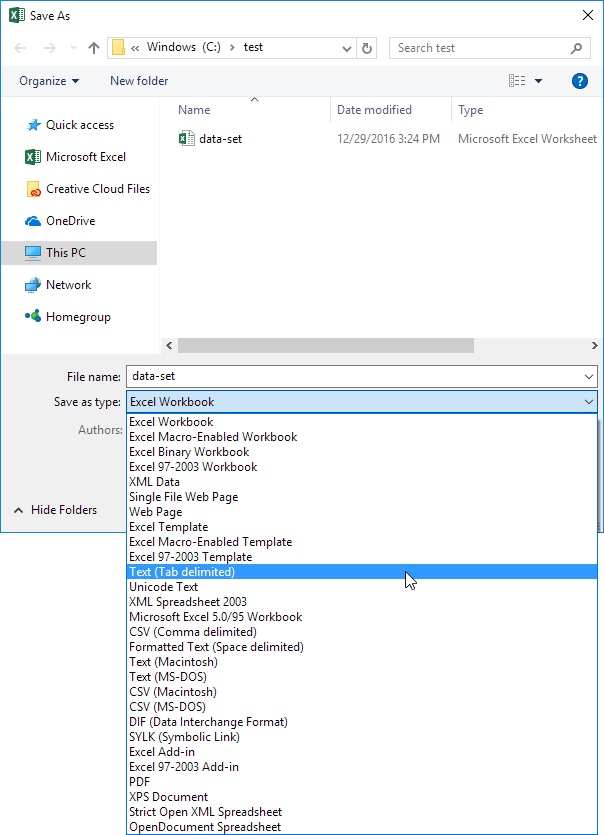
5. Click Save.
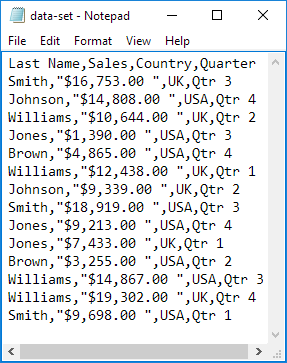
Result: a .csv file (comma separated) or a .txt file (tab separated).

Written by
Jason Howie
Founder, FormulasHQ
A formula nerd with a passion for numbers and equations. Writes about Excel, Google Sheets, VBA, regex, and Salesforce formulas — for people who spend their day in spreadsheets.