Share Workbooks - Excel Tutorial
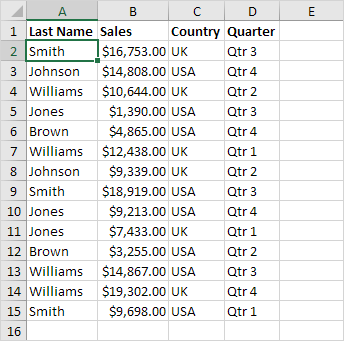
If you share a workbook in Excel 2016 or older versions you can work with other people on the same workbook at the same time. The workbook should be saved to a network location where other people can open it. You can keep track of the changes other people make and accept or reject those changes.
To share a workbook execute the following steps.
1. Open a workbook.
2. On the Review tab in the Changes group click Share Workbook.
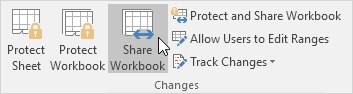
The Share Workbook dialog box appears.
3. On the Editing tab click the check box and click OK.

Excel saves the workbook. You can now work with other people on the same workbook at the same time. The screen above shows you who has the workbook open.
Highlight Changes
You can highlight the changes on screen other users have made.
1. On the Review tab in the Changes group click Track Changes.

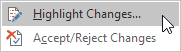
2. Click Highlight Changes.
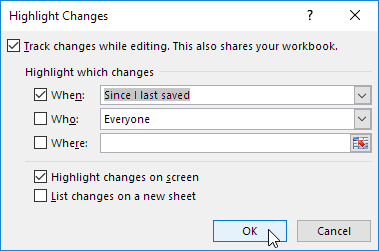
The Highlight Changes dialog box appears.
3. Click OK.
Excel highlights the changes on screen.
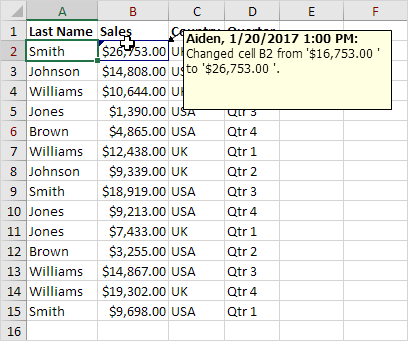
Apparently Aiden has changed the Sales of Smith from $16753.00 to $26753.00.
Accept/Reject ChangesYou can now accept or reject this change.
1. On the Review tab in the Changes group click Track Changes.
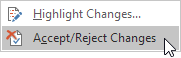
2. Click Accept/Reject Changes.
3. Click OK.
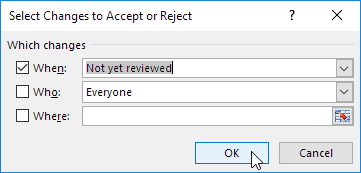
4. Click Accept to accept the change or Reject to reject the change.

Note: not all features are available in a shared workbook.
Written by
Jason Howie
Founder, FormulasHQ
A formula nerd with a passion for numbers and equations. Writes about Excel, Google Sheets, VBA, regex, and Salesforce formulas — for people who spend their day in spreadsheets.