Delete Row Shortcut in Excel
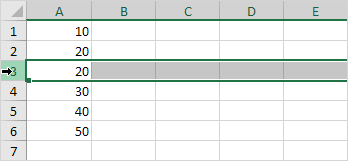
To quickly delete a row in Excel select a row and use the shortcut CTRL - (minus sign). To quickly delete multiple rows select multiple rows and use the same shortcut.
Delete Row
To delete a row in Excel execute the following steps.
1. Select a row.
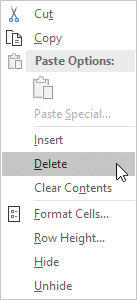
2. Right click and then click Delete.
Result:
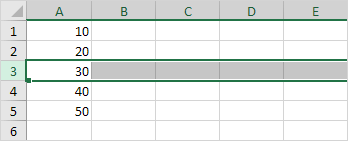
Note: instead of executing step 2 use the shortcut CTRL - (minus sign).
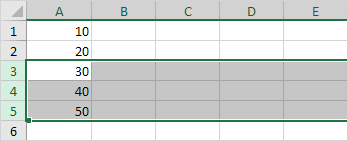
Delete RowsTo quickly delete multiple rows in Excel execute the following steps.
1. Select multiple rows by clicking and dragging over the row headers.

2. Press CTRL - (minus sign).
Result:
 Delete Cells
Excel displays the Delete Cells dialog box if you don't select a row or multiple rows before using the shortcut CTRL - (minus sign).
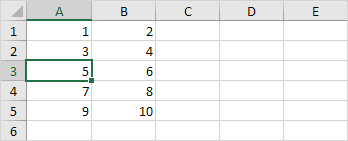
1. Select cell A3.

2. Press CTRL - (minus sign).
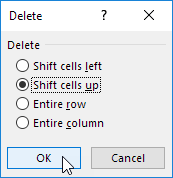
3a. Excel automatically selects "Shift cells up". Click OK.
Result:
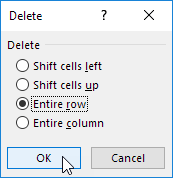
3b. To delete a row select "Entire row" and click OK.
Result:

Written by
Jason Howie
Founder, FormulasHQ
A formula nerd with a passion for numbers and equations. Writes about Excel, Google Sheets, VBA, regex, and Salesforce formulas — for people who spend their day in spreadsheets.