How to use ExcelOctober 11, 2024
Copy Visible Cells Only in Excel
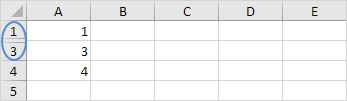
By default Excel copies both visible and hidden cells. However it is possible to copy visible cells only.
In this example row 2 is hidden.
When you copy/paste this range this is the result:
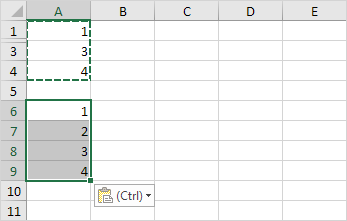
To copy visible cells only execute the following easy steps.
1. Select the range A1:A4.
2. On the Home tab in the Editing group click Find & Select.

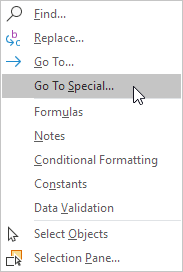
3. Click Go To Special.
4. Click Visible cells only and click OK.
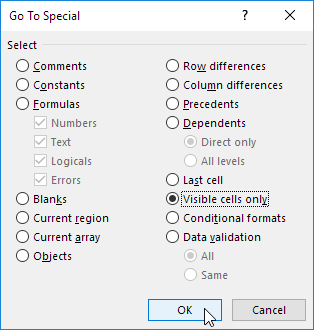
Excel selects the visible cells.
5. Press Ctrl + c to copy the range.
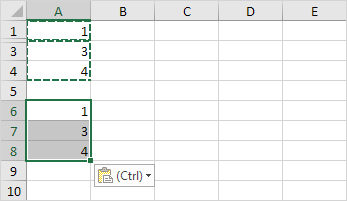
6. Select cell A6 and press Ctrl + v to paste the range.
Result:
Written by
Jason Howie
Founder, FormulasHQ
A formula nerd with a passion for numbers and equations. Writes about Excel, Google Sheets, VBA, regex, and Salesforce formulas — for people who spend their day in spreadsheets.