Convert Formula to Value in Excel

To quickly convert a formula to a value in Excel or to convert multiple formulas to values execute the following steps.
1. Select a cell with a formula.
2. Press F2 to switch to editing mode.
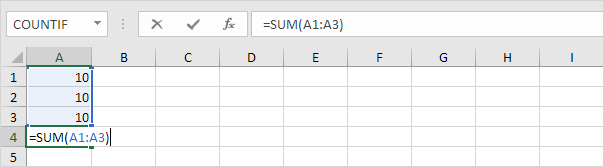
3. Press F9 to replace this formula with its result.

Don't forget to press Enter. To copy a formula result to another cell simply paste as values. Use the following magic trick to quickly convert multiple formulas to values in Excel.
4. Select a range of cells containing formulas. Hover over the right border of the selection. A four-sided arrow appears.
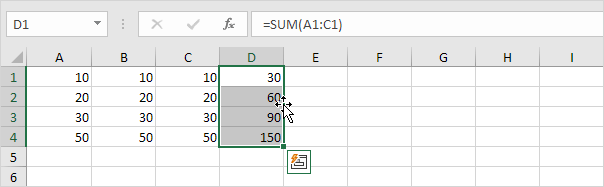
5. Click and hold the right mouse button. Drag the box to the right.
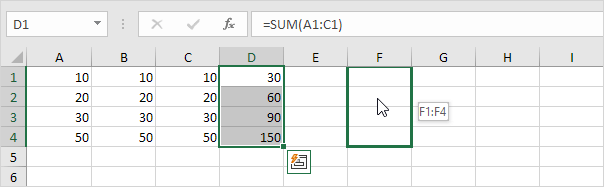
6. Keep holding down the right mouse button. Drag the box back to its original position.
7. Release the right mouse button. From the popup-menu click Copy Here as Values Only.
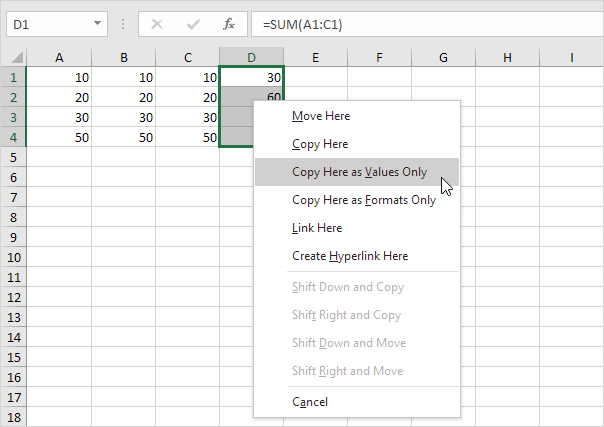
Result:
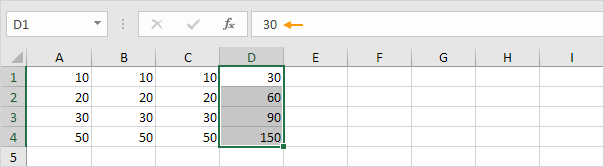
Note: cell D1 contains the value 30 (not a formula) cell D2 contains the value 60 (not a formula) etc.
Written by
Jason Howie
Founder, FormulasHQ
A formula nerd with a passion for numbers and equations. Writes about Excel, Google Sheets, VBA, regex, and Salesforce formulas — for people who spend their day in spreadsheets.