Wildcards in Excel
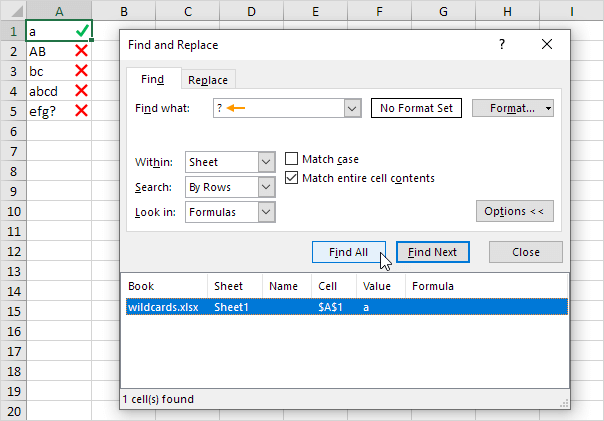
Excel has 3 wildcards. A question mark (?) matches exactly one character. An asterisk (*) matches zero or more characters. And a tilde (~).
Press CTRL + F to launch the Find and Replace dialog box.
One Character
A single question mark (?) matches exactly one (any) character.
Note: check "Match entire cell contents" to exclude partial matches (we want to count cells).
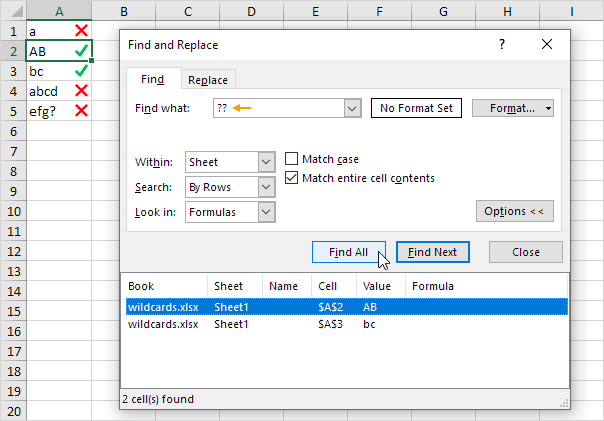
Two CharactersUse two question marks (??) to match any two characters.
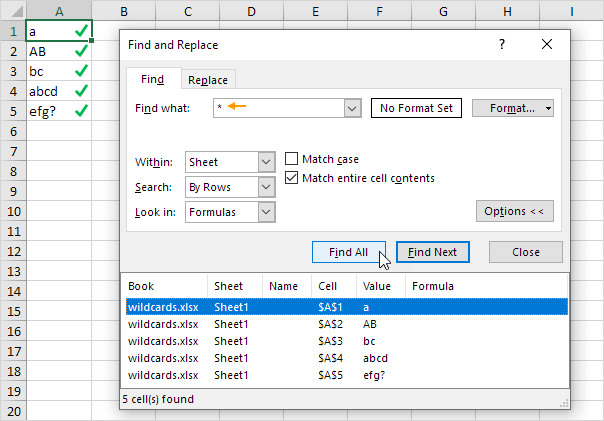
An asterisk (*) matches a series of zero or more characters.
Use a* to find all cells that start with the letter a.
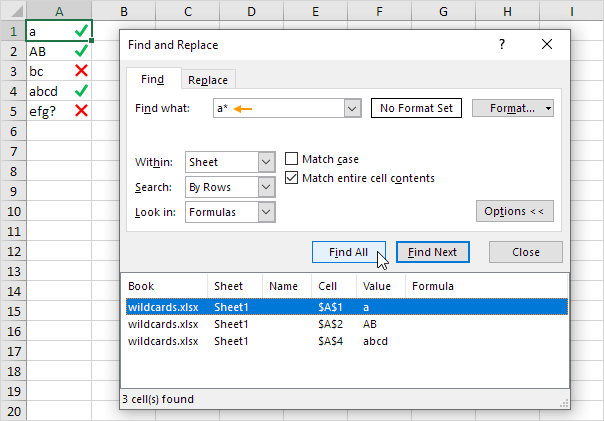
Note: if we check "Match case" a* will not find "AB" in cell A2.
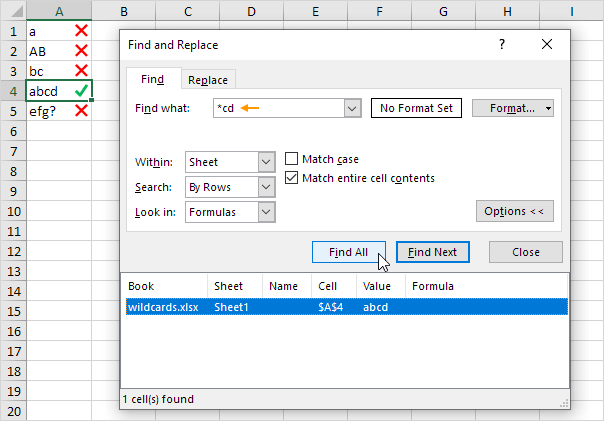
End WithUse *cd to find all cells that end with the text "cd".
To find question marks or asterisks precede the question mark or asterisk with a tilde (~). For example use *~? to find all cells that end with a question mark.

Note: ~? finds a literal question mark. ~* finds a literal asterisk. ~~ finds a literal tilde.
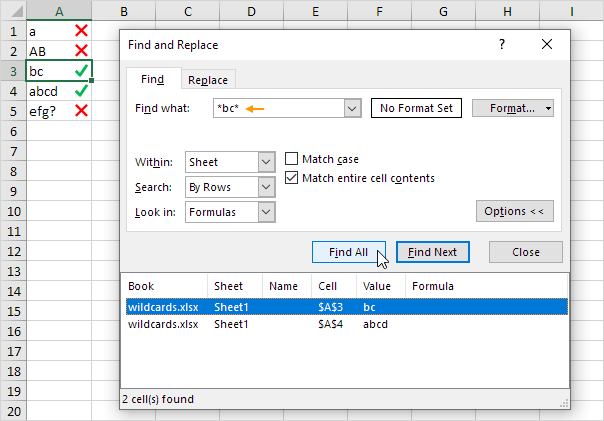
ContainUse *bc* to find all cells that contain "bc".
Note: download the Excel file and give it a try. Practice makes perfect. Also learn how to use wildcards in formulas and how to use wildcards in filters.
Written by
Jason Howie
Founder, FormulasHQ
A formula nerd with a passion for numbers and equations. Writes about Excel, Google Sheets, VBA, regex, and Salesforce formulas — for people who spend their day in spreadsheets.