Structured References in Excel
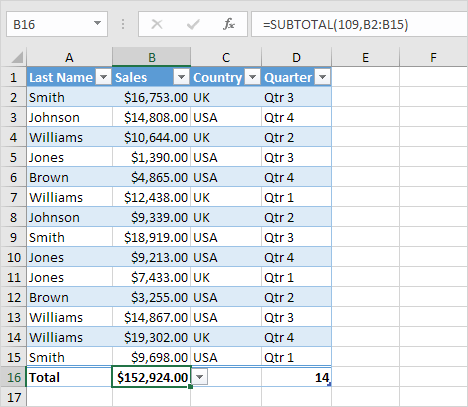
When working with tables in Excel you can use structured references to make your formulas easier to understand.
For example we have the following table.
1. Select cell E1 type Bonus and press Enter. Excel automatically formats the column for you.

2. Select cell E2 and type =0.02*[
3. A list of structured references (the columns) appears. Select Sales from the list.
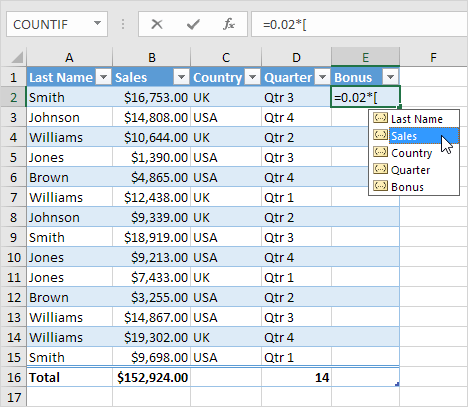
4. Close with a square bracket and press Enter.
Result: Excel automatically copies the formula down the column for you.

Note: click AutoCorrect Options and click Undo Calculated Column to only insert the formula into cell E2.
To refer to this table in a formula execute the following steps.
5. First select a cell inside the table. Next on the Table Design tab in the Properties group we can see that Table1 is the name of this table.

6. Select cell E18 and enter the formula shown below.

Explanation: this formula calculates the sum of the Sales column. Enter =SUM(Table1[ and Excel will give you a list of structured references you can use. This formula updates automatically when you add or delete records.
Written by
Jason Howie
Founder, FormulasHQ
A formula nerd with a passion for numbers and equations. Writes about Excel, Google Sheets, VBA, regex, and Salesforce formulas — for people who spend their day in spreadsheets.