Solve a System of Linear Equations in Excel
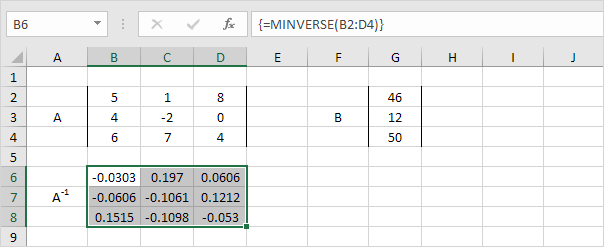
This example shows you how to solve a system of linear equations in Excel. For example we have the following system of linear equations:
| 5x | + | 1y | + | 8z | = | 46 |
| 4x | - | 2y | = | 12 | ||
| 6x | + | 7y | + | 4z | = | 50 |
In matrix notation this can be written as AX = B
| 5 | 1 | 8 | <!-- X <td width="15"> | x | <!-- B <td width="15"> | 46 | ||||||
| 4 | -2 | 0 | <!-- X <td> | X = | y | <!-- B <td> | B = | 12 | ||||
| 6 | 7 | 4 | <!-- X <td> | z | <!-- B <td> | 50 |
If A-1 (the inverse of A) exists we can multiply both sides by A-1 to obtain X = A-1B. To solve this system of linear equations in Excel execute the following steps.
1. Use the MINVERSE function to return the inverse matrix of A. First select the range B6:D8. Next insert the MINVERSE function shown below. Finish by pressing CTRL + SHIFT + ENTER.
Note: the formula bar indicates that the cells contain an array formula. Therefore you cannot delete a single result. To delete the results select the range B6:D8 and press Delete.
2. Use the MMULT function to return the product of matrix A-1 and B. First select the range G6:G8. Next insert the MMULT function shown below. Finish by pressing CTRL + SHIFT + ENTER.
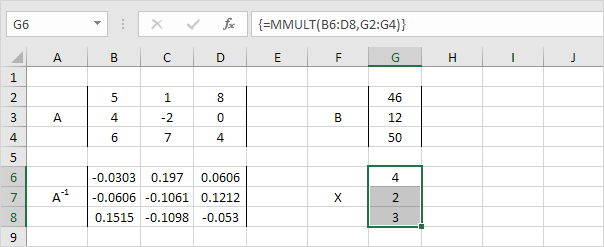
3. Put it all together. First select the range G6:G8. Next insert the formula shown below. Finish by pressing CTRL + SHIFT + ENTER.
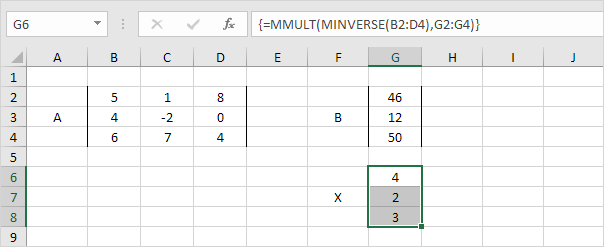
4. If you have Excel 365 or Excel 2021 simply select cell G6 enter the same formula as above and press Enter. Bye bye curly braces.
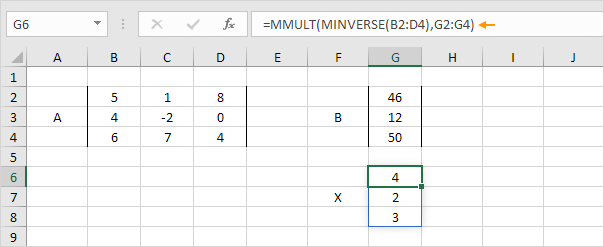
Note: this dynamic array formula entered into cell G6 fills multiple cells. Wow! This behavior in Excel 365/2021 is called spilling.
Written by
Jason Howie
Founder, FormulasHQ
A formula nerd with a passion for numbers and equations. Writes about Excel, Google Sheets, VBA, regex, and Salesforce formulas — for people who spend their day in spreadsheets.