Negative Numbers to Zero - Excel Formula
A clever Excel trick to change negative numbers to zero but leave positive numbers unchanged.
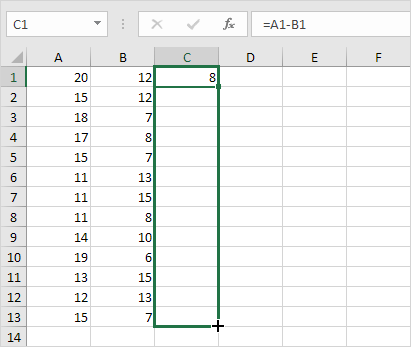
Below you can find two columns with numbers. To subtract the numbers in column B from the numbers in column A execute the following steps.
1. Select cell C1.
2. Enter the formula =A1-B1
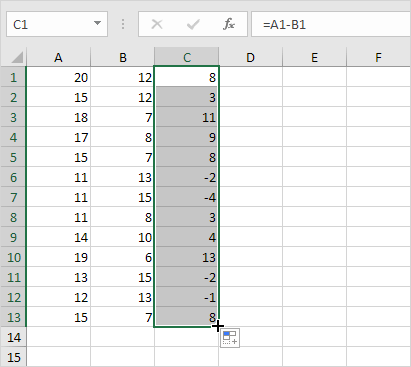
3. Click the lower right corner of cell C1 and drag the formula down.
Result:
4. To change the negative numbers to zero but leave the positive numbers unchanged instead of =A1-B1 use =MAX(0A1-B1) and drag the function down.
Result:
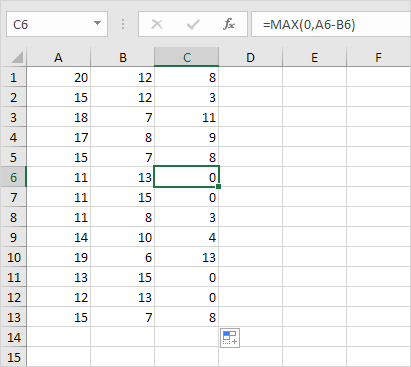
Explanation: the MAX function returns the maximum of two values. If the result of the formula is negative the function returns 0.
Written by
Jason Howie
Founder, FormulasHQ
A formula nerd with a passion for numbers and equations. Writes about Excel, Google Sheets, VBA, regex, and Salesforce formulas — for people who spend their day in spreadsheets.