INDEX and MATCH in Excel

Use INDEX and MATCH in Excel and impress your boss. Instead of using VLOOKUP use INDEX and MATCH. To perform advanced lookups you'll need INDEX and MATCH.
MATCH
The MATCH function returns the position of a value in a given range. For example the MATCH function below looks up the value 53 in the range B3:B9.
Explanation: 53 (first argument) found at position 5 in the range B3:B9 (second argument). In this example we use MATCH to return an exact match so we set the third argument to 0.
INDEXThe INDEX function below returns a specific value in a one-dimensional range.
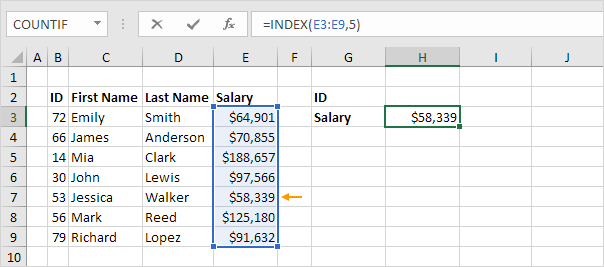
Explanation: the INDEX function returns the 5th value (second argument) in the range E3:E9 (first argument).
INDEX and MATCHReplace the value 5 in the INDEX function (see previous example) with the MATCH function (see first example) to lookup the salary of ID 53.
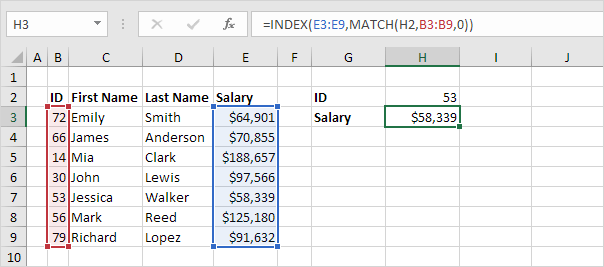
Explanation: the MATCH function returns position 5. The INDEX function needs position 5. It's a perfect combination. If you like you can also use the VLOOKUP function. It's up to you. However you'll need INDEX and MATCH to perform advanced lookups as we will see next.
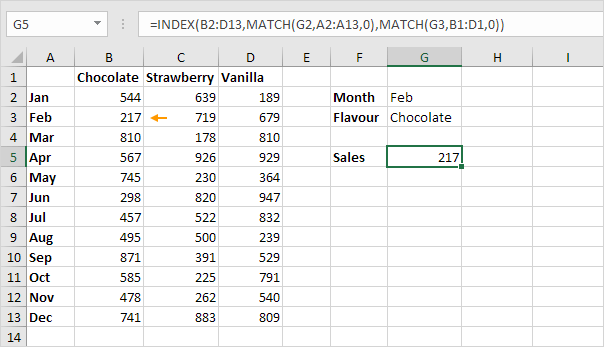
Two-way LookupThe INDEX function can also return a specific value in a two-dimensional range. For example use INDEX and MATCH in Excel to perform a two-way lookup.
By default the VLOOKUP function performs a case-insensitive lookup. However you can use INDEX MATCH and EXACT in Excel to perform a case-sensitive lookup.
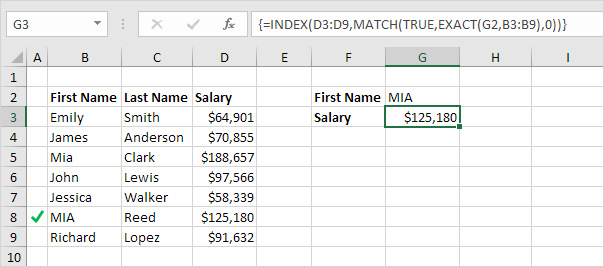
Note: the formula correctly looks up the salary of MIA Reed not Mia Clark.
Left LookupThe VLOOKUP function only looks to the right. No worries you can use INDEX and MATCH in Excel to perform a left lookup.
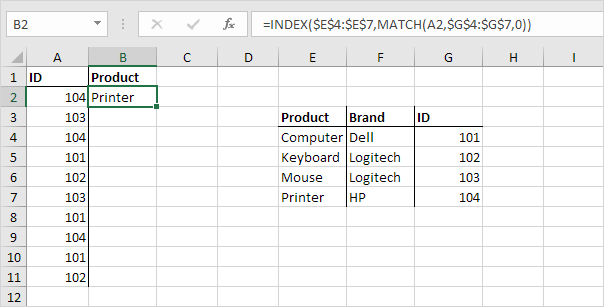
Note: when we drag this formula down the absolute references ($E$4:$E$7 and $G$4:$G$7) stay the same while the relative reference (A2) changes to A3 A4 A5 etc.
Two-column LookupDo you want to look up a value based on multiple criteria? Use INDEX and MATCH in Excel to perform a two-column lookup.
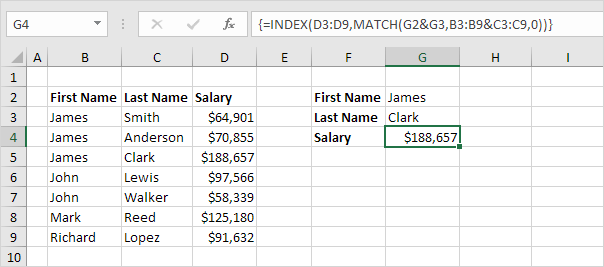
Note: the array formula above looks up the salary of James Clark not James Smith not James Anderson.
Closest MatchTo find the closest match to a target value in a data column use INDEX MATCH ABS and MIN in Excel.

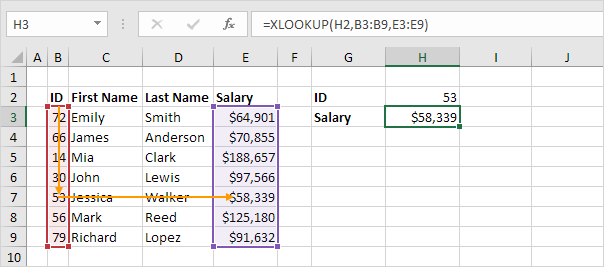
If you have Excel 365 or Excel 2021 use XLOOKUP instead of INDEX and MATCH. The XLOOKUP function is easier to use and has some additional advantages.
Written by
Jason Howie
Founder, FormulasHQ
A formula nerd with a passion for numbers and equations. Writes about Excel, Google Sheets, VBA, regex, and Salesforce formulas — for people who spend their day in spreadsheets.