Formula Auditing in Excel
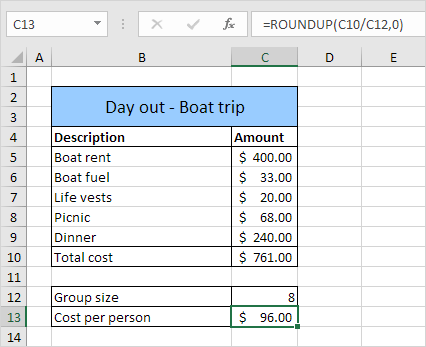
Formula auditing in Excel allows you to display the relationship between formulas and cells. The example below helps you master Formula Auditing quickly and easily.
Trace Precedents
You have to pay $96.00. To show arrows that indicate which cells are used to calculate this value execute the following steps.
1. Select cell C13.
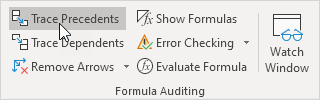
2. On the Formulas tab in the Formula Auditing group click Trace Precedents.
Result:
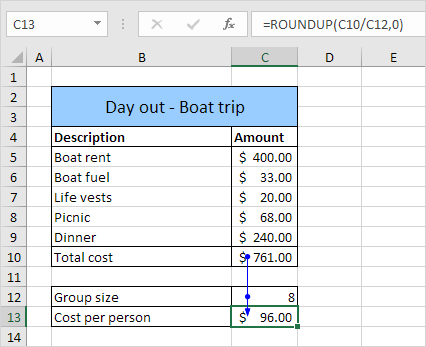
As expected Total cost and Group size are used to calculate the Cost per person.
3. Click Trace Precedents again.

As expected the different costs are used to calculate the Total cost.
Remove ArrowsTo remove the arrows execute the following steps.
1. On the Formulas tab in the Formula Auditing group click Remove Arrows.

To show arrows that indicate which cells depend on a selected cell execute the following steps.
1. Select cell C12.
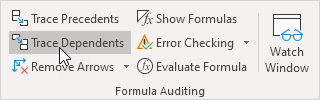
2. On the Formulas tab in the Formula Auditing group click Trace Dependents.
Result:
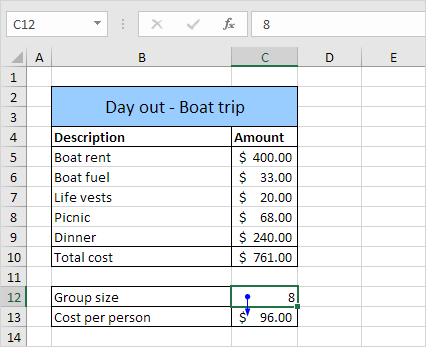
As expected the Cost per person depends on the Group size.
Show FormulasBy default Excel shows the results of formulas. To show the formulas instead of their results execute the following steps.
1. On the Formulas tab in the Formula Auditing group click Show Formulas.

Result:

Note: instead of clicking Show Formulas press CTRL + ` (you can find this key above the tab key).
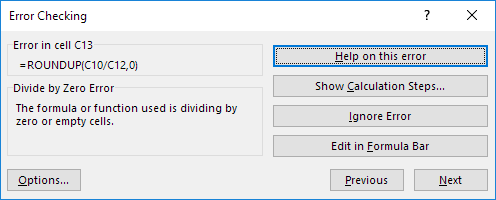
Error CheckingTo check for common errors that occur in formulas execute the following steps.
1. Enter the value 0 into cell C12.

2. On the Formulas tab in the Formula Auditing group click Error Checking.

Result: Excel finds an error in cell C13. The formula tries to divide a number by 0.
 Evaluate Formula
To debug a formula by evaluating each part of the formula individually execute the following steps.
1. Select cell C13.
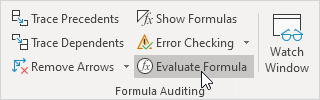
2. On the Formulas tab in the Formula Auditing group click Evaluate Formula.
3. Click Evaluate four times.
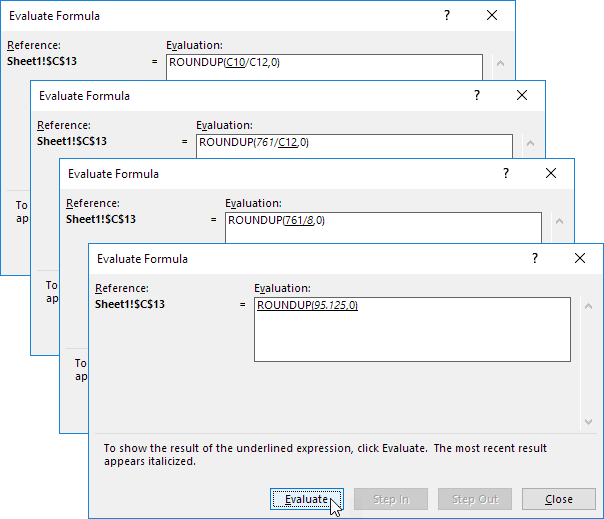
Excel shows the formula result.

Written by
Jason Howie
Founder, FormulasHQ
A formula nerd with a passion for numbers and equations. Writes about Excel, Google Sheets, VBA, regex, and Salesforce formulas — for people who spend their day in spreadsheets.